
WhatsApp Messenger
WhatsApp LLC
Oct 18, 2010
Jan 7, 2026
173.27 MB
Varies with device
Varies with device
10,000,000,000+

Description
Download: Install WhatsApp Messenger from the Apple App Store (iPhone) or Google Play Store (Android).
Verification: Open the app and enter your phone number.
2. Starting a Conversation
New Chat: Tap the Chat icon (usually a speech bubble on Android or a notepad/pen on iPhone).
Select Contact: Scroll through your list and tap a name to open a chat window.
Type and Send: Type your message in the text box at the bottom and tap the arrow/send icon.
Read Receipts: * One grey tick: Message sent.
Two grey ticks: Message delivered to their phone.
Two blue ticks: The person has read your message.
3. Calls and Media
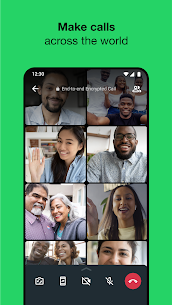
Voice/Video Calls: Inside a chat, tap the Phone icon for an audio call or the Camera icon for a video call.
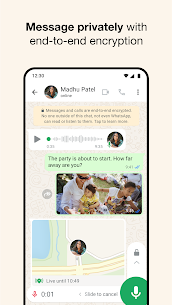
Voice Notes: Tap and hold the Microphone icon to record a message. Let go to send it, or swipe up to lock it for a hands-free recording.
Sharing Files: Tap the “+” (iPhone) or Paperclip (Android) icon to send photos, videos, documents, or your current location.
4. Useful Features for 2026
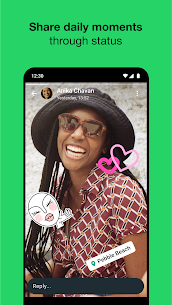
Status Updates: Similar to “Stories,” you can share photos or text that disappear after 24 hours by tapping the Status (or “Updates”) tab.
WhatsApp Web: You can use WhatsApp on your computer by going to [suspicious link removed] and scanning the QR code with your phone (Settings > Linked Devices).
Meta AI: Look for the colorful circle icon in your chat list to ask questions or generate images directly within the app.
What's new
• You can now add a custom Member Tag to let everyone know your role in the group chat. Open the group chat, tap the group name and scroll to the members list. Tap Add member tag and type in your role to show people who you are or how you’re known in this group.
These features will roll out over the coming weeks. Thanks for using WhatsApp!
Images


Related apps




Developer's apps
Most viewed apps
-
 WhatsApp MessengerVaries with device 173.27 MB
 -
 FacebookVaries with device 74.71 MB
 -
Updated
 Snapchat13.75.0.45 285.1 MB
 -
 Facebook LiteVaries with device 2.95 MB
 -
Updated
 WhatsApp Business2.26.1.76 154.43 MB
 -
 Telegram12.3.0 149.33 MB
 -
 TikTokVaries with device 452.96 MB
 -
 MessengerVaries with device 74 MB
 -
 YES 01 instagramVaries with device 112.34 MB
 -
 YouCut – Video Editor & Maker1.702.1215
-
Most rated apps
-
WhatsApp MessengerVaries with device 173.27 MB
-
FacebookVaries with device 74.71 MB
-
YES 01 instagramVaries with device 112.34 MB
-
MessengerVaries with device 74 MB
-
TikTokVaries with device 452.96 MB
-
UpdatedSnapchat13.75.0.45 285.1 MB
-
Facebook LiteVaries with device 2.95 MB
-
UpdatedWhatsApp Business2.26.1.76 154.43 MB
-
Telegram12.3.0 149.33 MB
-
Latest Apps
-
New
 Bubble Bling: Win Real Money1.17.0.0
 -
YouCut – Video Editor & Maker1.702.1215
-
 Picsart AI Photo Editor, Video29.1.6 158.46 MB
 -
UpdatedSnapchat13.75.0.45 285.1 MB
-
UpdatedWhatsApp Business2.26.1.76 154.43 MB
-
TikTokVaries with device 452.96 MB
-
YES 01 instagramVaries with device 112.34 MB
-
 PinterestVaries with device 110.64 MB
 -
MessengerVaries with device 74 MB
-
Facebook LiteVaries with device 2.95 MB
-
FacebookVaries with device 74.71 MB
-